

Turn a Static Banner into a Professional Animated Stage Screen Background Using Kling AI and CapCut
When I first saw my animated stage background displayed on a large venue screen, I was genuinely blown away. What started as a single static banner image became a beautiful, magical animated backdrop that looked professionally produced—and it cost a fraction of what a custom animation studio would charge.
The best part? I created the entire project on a laptop using AI tools and a bit of creativity.
If you’re a performer, entertainer, speaker, event organiser, or business owner looking to create eye-catching stage visuals, here’s exactly how I did it.
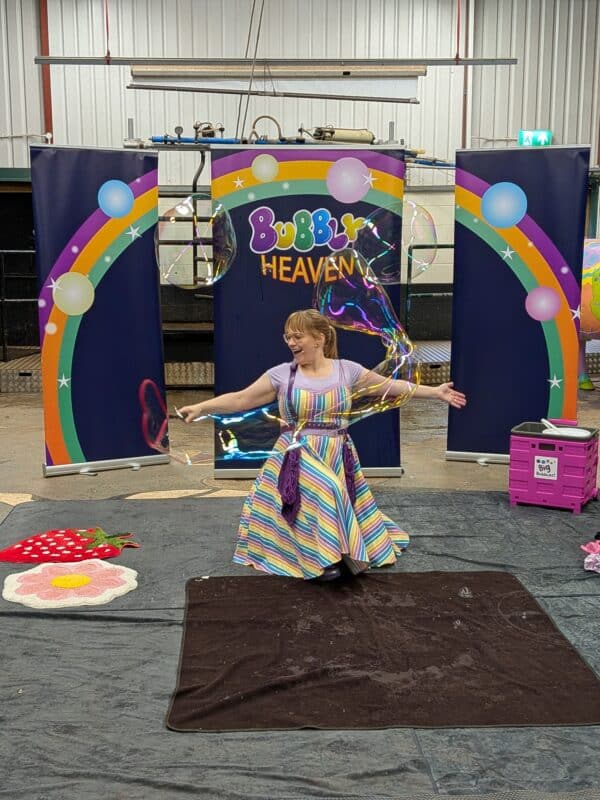
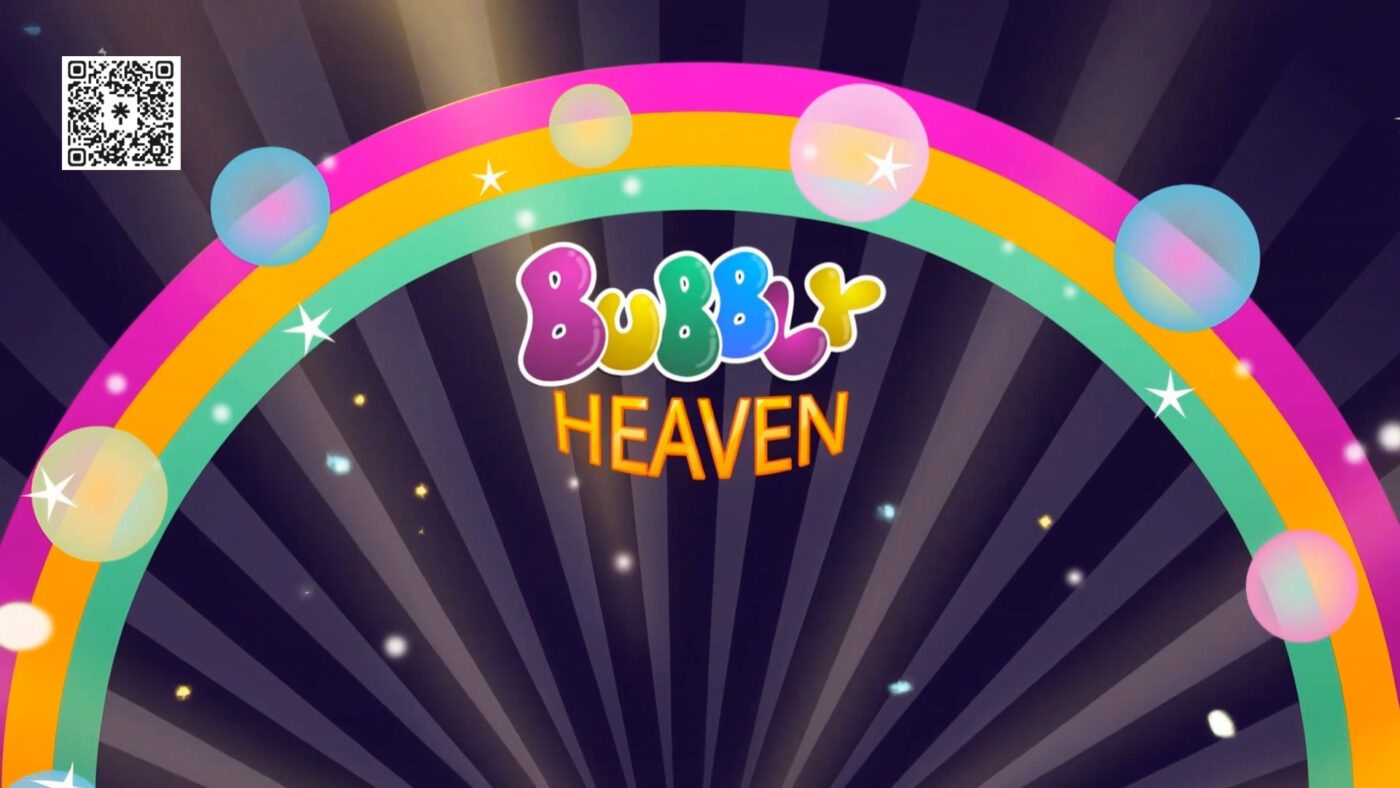
This is my static physical banner design
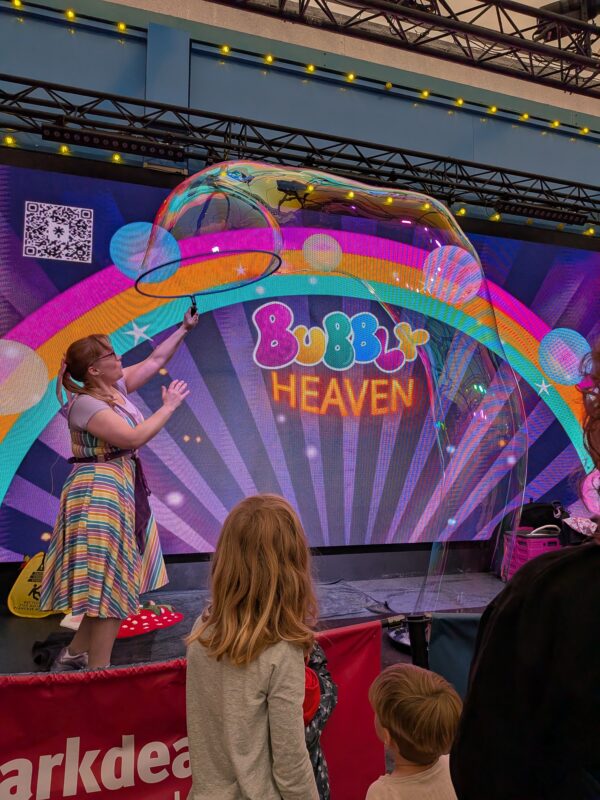
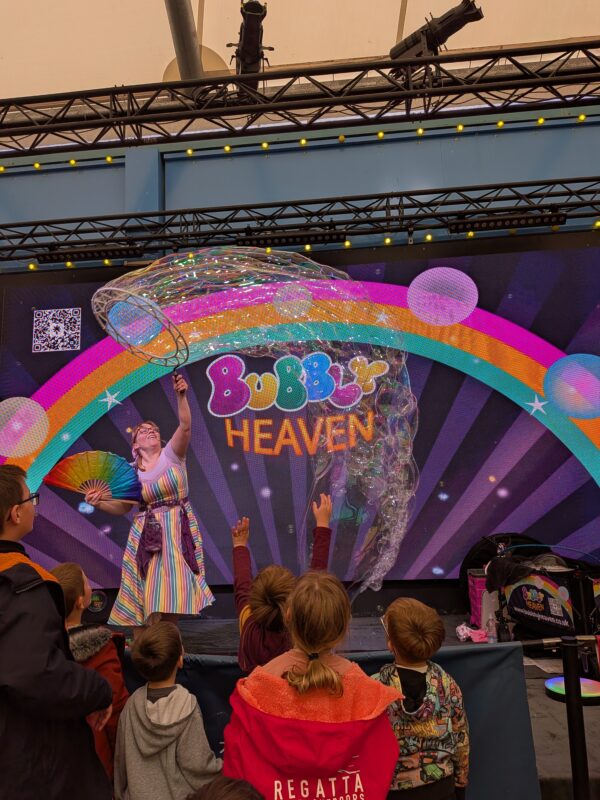
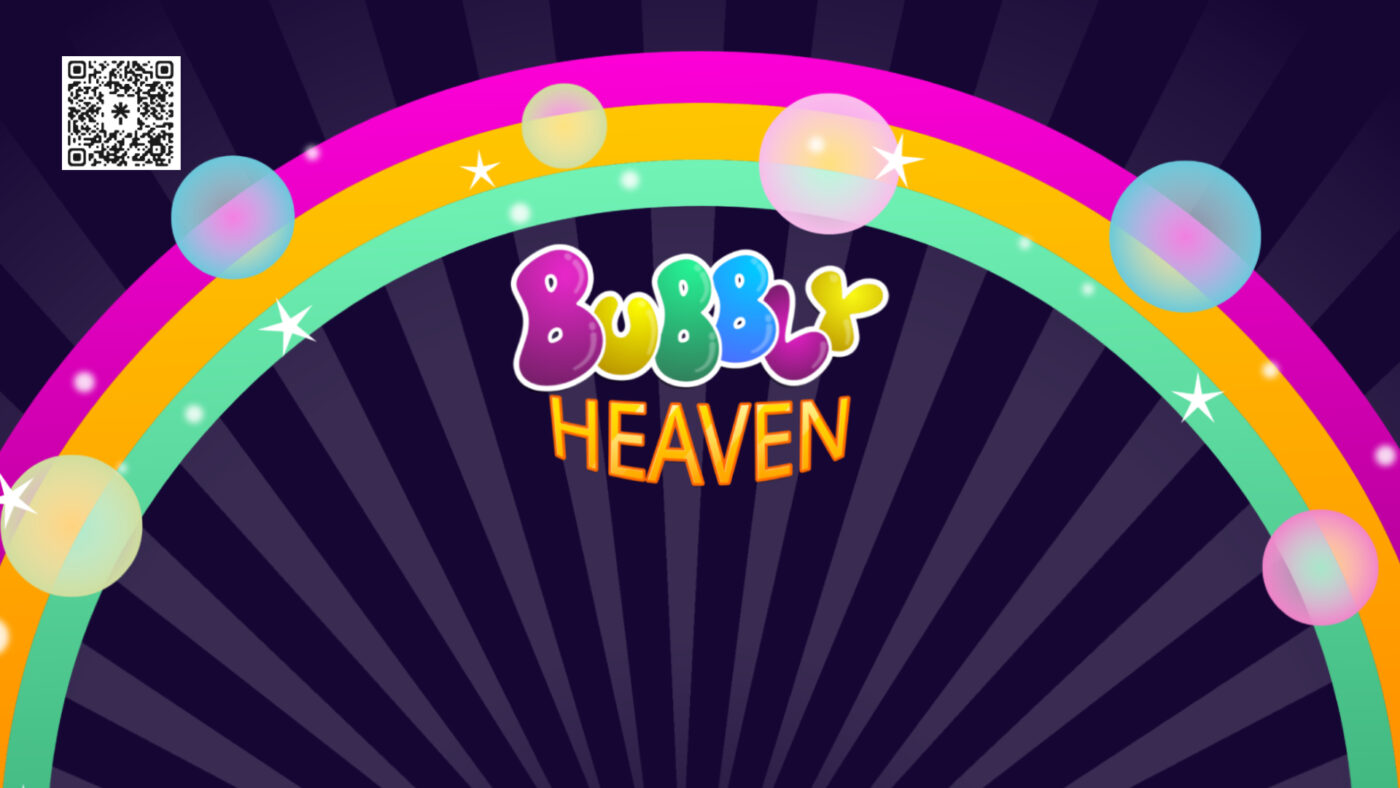
This is one of the animations that I created

The Tools I Used
Kling AI
I uploaded my existing banner backdrop image to Kling AI and used its image-to-video animation feature.
I subscribed to Kling AI for one month to access credits, completed the project, and then cancelled the subscription before the next billing cycle.
CapCut
Although Kling AI generated beautiful animations, it couldn’t create a true seamless loop for my stage background. To solve this, I used CapCut to turn the animation into a perfectly looping video.
Again, I subscribed for one month, completed the project, and then cancelled.
My Kling AI Animation Prompt
The original banner already contained bubbles, stars, a rainbow, and my logo. I only wanted specific elements animated while keeping the branding completely static.
This is the prompt that produced the best results:
“Animate only the bubbles and stars in the image. Keep the rainbow and logo completely static and sharp with no movement or distortion. The bubbles should slowly float upward and drift gently in different directions with soft glowing highlights. The stars should twinkle subtly and shimmer with magical sparkling light. Add gentle glow effects, dreamy lighting, soft sparkles, and smooth magical ambience. The animation should be slow, elegant, and non-distracting for a live stage background. Maintain the original colours and composition of the image.
IMPORTANT: Create a perfectly seamless looping animation. The ending frame must smoothly match the starting frame so the video loops continuously with no visible jump or flash. Use cyclical bubble movement and repeating sparkle patterns designed for an endless loop.
Style: magical, dreamy, glowing.”
Don’t Expect Perfect Results First Time
One thing I quickly learned is that AI animation requires experimentation.
Some outputs looked fantastic.
Others weren’t quite right.
I generated multiple versions, compared them, and kept refining the prompts until I achieved the look I wanted.
If you’re struggling to get the right animation, don’t be afraid to ask ChatGPT for help refining your prompt. Small wording changes can make a huge difference to the final result.
Also, don’t worry about any sound effects Kling AI adds to the video. These can easily be removed later.
How I Created a Seamless Loop in CapCut
Despite specifically requesting a seamless loop, Kling AI never quite delivered a perfect looping video.
Instead, I used a simple technique inside CapCut.
Step 1
Upload the video downloaded from Kling AI.
Step 2
Duplicate the clip.
Step 3
Reverse the duplicated clip.
Step 4
Place the reversed clip immediately after the original clip.
The result:
-
Clip 1 plays forward
-
Clip 2 plays backward
This creates a smooth loop that continuously cycles without any obvious jumps.
Optional Adjustments
Inside CapCut, you can also:
-
Slow the animation down to make it less distracting
-
Trim out sections you don’t like
-
Adjust timing for smoother transitions
-
Fine-tune the overall pacing for live performances
Export Settings for Stage Screens
After creating the seamless loop, I exported both MP4 and MOV versions.
You may only need one format, but having both available gives you flexibility if a venue prefers a particular file type.
Recommended Export Settings
-
Resolution: 1920 × 1080
-
Format: MP4 and MOV
-
Frame Rate: 30fps
-
Duration: 10–30 second seamless loop
-
Bitrate: 12–20 Mbps
Why I Created Both Video and Still Versions
Not every venue uses video backgrounds.
Some venues may only support static images or may prefer them for technical reasons.
To ensure I was prepared for every situation, I created:
-
Animated video versions
-
Static image versions
This gave me maximum flexibility when arriving at a venue.
USB Type Strategy
I use a dual USB-A and USB-C memory stick. Different venues use different equipment, so having both connection types available can save a lot of stress on the day.
The Final Result
Seeing the finished animated background displayed on a large stage screen was incredible.
The subtle floating bubbles, twinkling stars, and magical glow effects added a huge amount of production value to the show.
Most audience members would probably assume a professional motion graphics designer created it.
In reality, it was made using AI, a laptop, and a few hours of experimentation.
Is AI Worth Using for Stage Backgrounds?
Absolutely.
Creating custom animated stage visuals used to require specialist software, advanced design skills, or hiring a motion graphics professional.
Today, tools like Kling AI and CapCut make it possible for performers and business owners to create professional-looking animated backgrounds at a tiny fraction of the traditional cost.
Even better, once you’ve created your design, you can easily return later to generate new versions, make adjustments, test new ideas, or completely refresh your visuals whenever you want.
AI has genuinely changed what’s possible for independent performers and creators.
And after seeing the final result projected on stage, I can honestly say it looked amazing.
Whoop! AI is incredible.


Well done Cheryl, looks brilliant! Thank you for sharing too!
My pleasure 🙂
Well done Cheryl, looks brilliant! Thank you for sharing too!